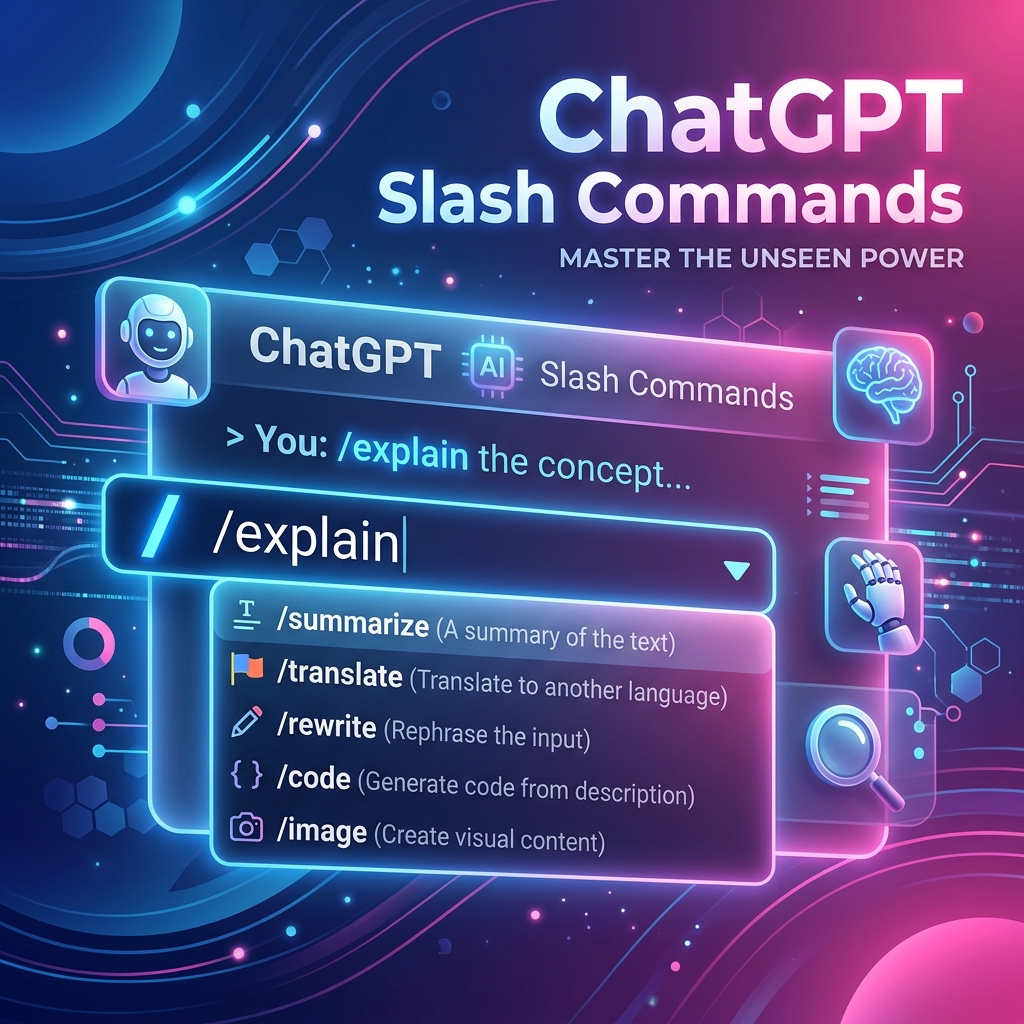
Have you noticed that there isn't a single, official master list of all slash (/) commands inside ChatGPT? That is because OpenAI manages these commands dynamically. Depending on your current pricing tier, client platform (Web, iOS, Android, macOS/Windows Desktop app), account-specific features, and active experimental updates, the commands you can use might differ completely from someone else's.
The definitive way to check which actions are currently active for your account is simple: type / in a new chat. A popup overlay will immediately appear detailing your specific command registry.
However, to help you stay ahead, we have compiled the most comprehensive and up-to-date registry of all ChatGPT slash commands discovered in 2026—including experimental features and niche tools.
The table below provides a full breakdown of the commands seen across different ChatGPT plans and platform versions in 2026:
| Command | Purpose |
|---|---|
| /image | Generate high-quality AI images using DALL-E |
| /study | Activate Study Mode with guided personalized learning |
| /search | Search the live web directly |
| /canvas | Open a collaborative editing canvas for writing and coding |
| /python | Run a sandboxed Python compiler for calculations and data analytics |
| /sticky-notes | Convert lists or ideas into interactive sticky notes |
| /visualizelearning | Create a visual concept map or learning aid |
| /generatehandwrittenimage | Create images containing handwritten-style text/notes |
| /quizme | Generate a custom quiz based on your topic or files |
| /flashcards | Create study flashcards from text inputs or documents |
| /summarize | Instantly summarize uploaded documents, logs, or text blocks |
| /timeline | Generate structured chronological timelines |
| /mindmap | Build visual hierarchical mind maps or diagrams |
| /diagram | Create custom diagrams, flowcharts, or system schemas |
| /table | Format text, details, and raw inputs directly into dynamic tables |
| /translate | Translate code snippet or text into multiple languages |
| /rewrite | Rewrite paragraphs to adjust tone, clarity, or style |
| /brainstorm | Generate ideas, headlines, or marketing concepts |
| /explain | Explain a complex concept using analogies and simple terms |
| /simplify | Reduce complex documentation to an easily readable summary |
| /compare | Create side-by-side comparison tables between two topics |
| /plan | Generate a step-by-step action plan or project outline |
| /presentation | Draft presentation slides content and structural flow |
| /spreadsheet | Analyze spreadsheets, CSVs, and compute tabular reports |
| Extract data, tables, or text contents from PDFs | |
| /code | Write, edit, debug, or comment code across various languages |
| /math | Solve mathematics questions with step-by-step logic proofs |
| Draft customized emails, follow-ups, or announcements | |
| /resume | Resume the thread's current task or sequence context |
| /help | Display the official list of active commands for your account |
To speed up your workflow, commands can be grouped by the primary roles they assist:
/study - Activates Study Mode/quizme - Tests your topic comprehension/flashcards - Builds visual learning cues/visualizelearning - Renders maps/timeline - Chronological sequences/mindmap - Ideation branch maps/sticky-notes - Segment concepts/generatehandwrittenimage - Handwritten note look/rewrite - Adapts tone and structure/summarize - Distills text quickly/translate - Multi-lingual translation/email - Formats emails/table - Tabulates text structures/python - Executes code blocks and data analytics/canvas - Multi-user code editor workspace/code - Auto-generates logic snippets/image - Direct image generation commands/diagram - System architectures and flowcharting/presentation - slide script outlining/pdf or /spreadsheet) dynamically show up in the menu list only when a corresponding attachment has been successfully uploaded to the current prompt box./.VitableTech engineers robust, custom software integrations with OpenAI APIs, automation bots, and webhooks.
Request a Consultation